Costs
Cost reports across your clouds, the savings you could make, and the days your spend rose or fell unexpectedly.
Costs come from the cost sources you connect: each reads one cloud's cost export, and syncs every 24 hours. Costs has three tabs: Reports, Savings and Anomalies.
Reports
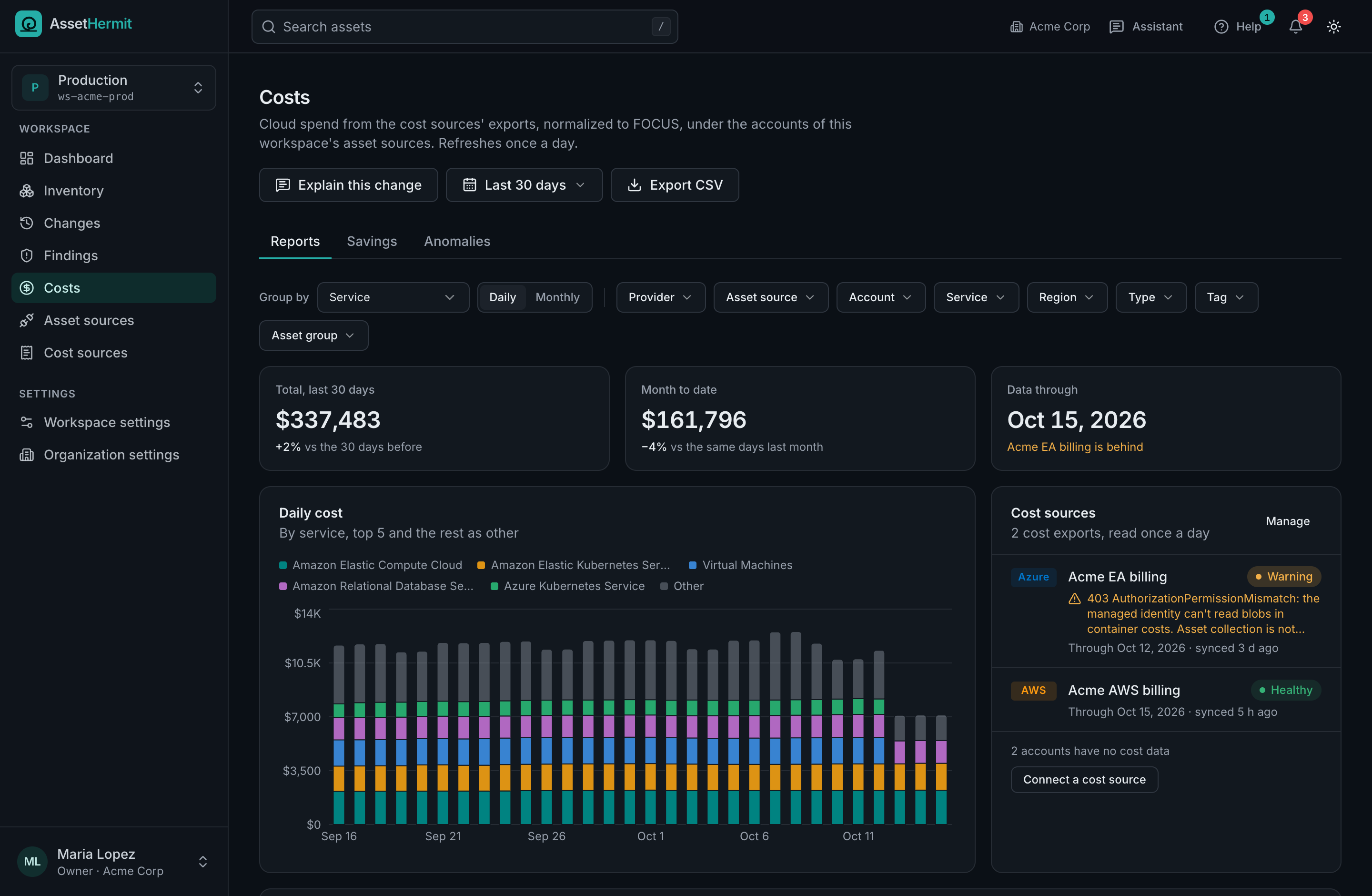
A report sums the cost of a period by asset source, account, service, region, tag, asset, asset group, charge type and usage type, by day or by month, beside the period before for comparison. The dashboard shows the month to date, and each asset's page its own cost.
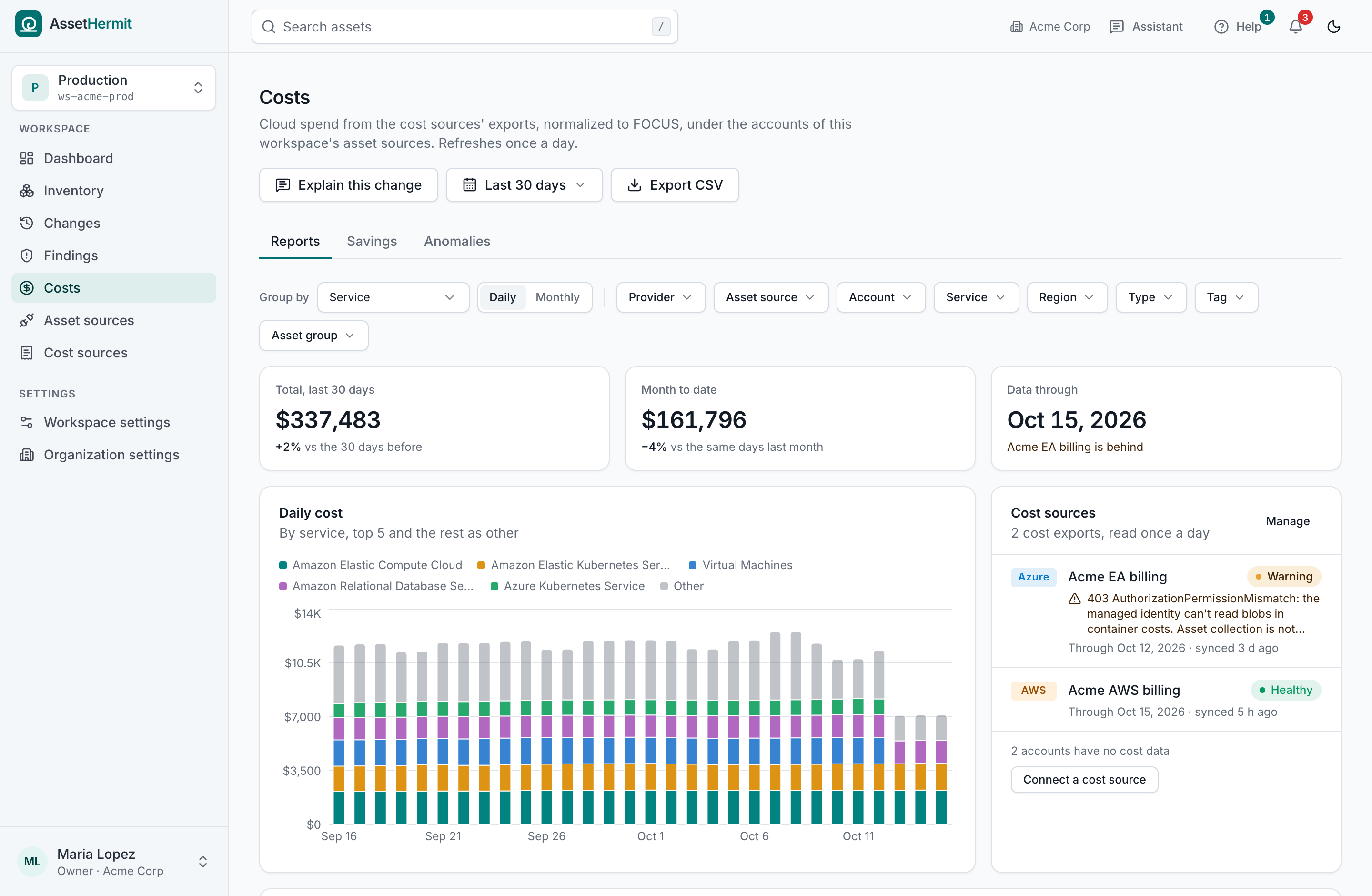
- Reports sum amortized cost (FOCUS's EffectiveCost), so upfront payments for reservations and savings plans are spread over the days they cover.
- Every amount is in US dollars, converted at each day's European Central Bank reference rate. Each row also keeps its own billing currency.
- Cost links to an asset when the export names the resource, such as an EC2 instance, an EBS volume or an S3 bucket. Accounts no cost source covers show no cost, and the page counts them.
- Export CSV downloads the report as you see it.
Savings
Some audit rules find what you could stop paying for: unattached disks, unused Elastic IPs, stale snapshots, failed NAT gateways, log groups kept forever. Savings lists each asset with the action, the findings behind it and the saving a month, estimated from what that asset cost you over the last 30 days. An asset with no cost in your export gets no estimate: we never guess from a list price.
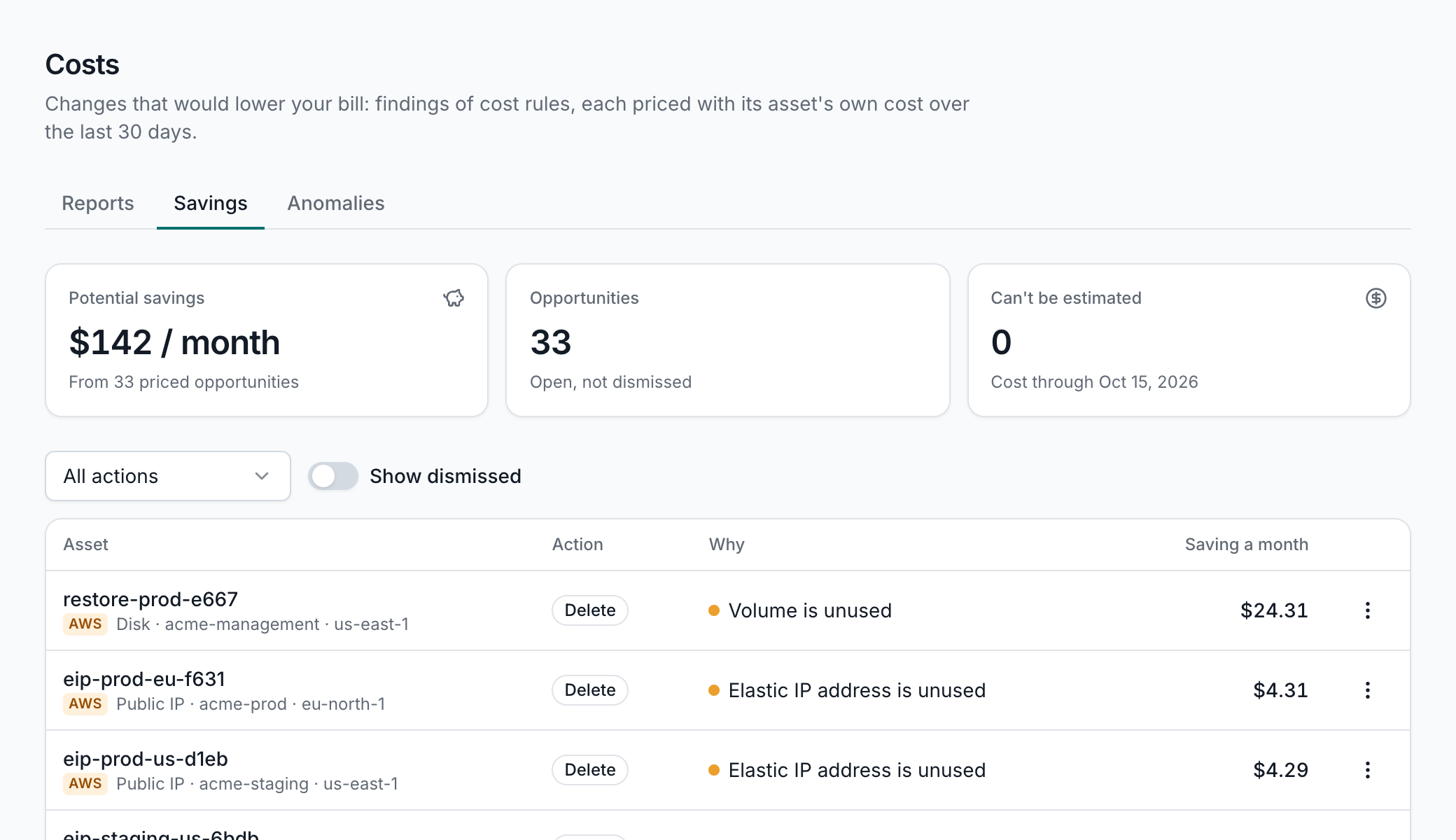
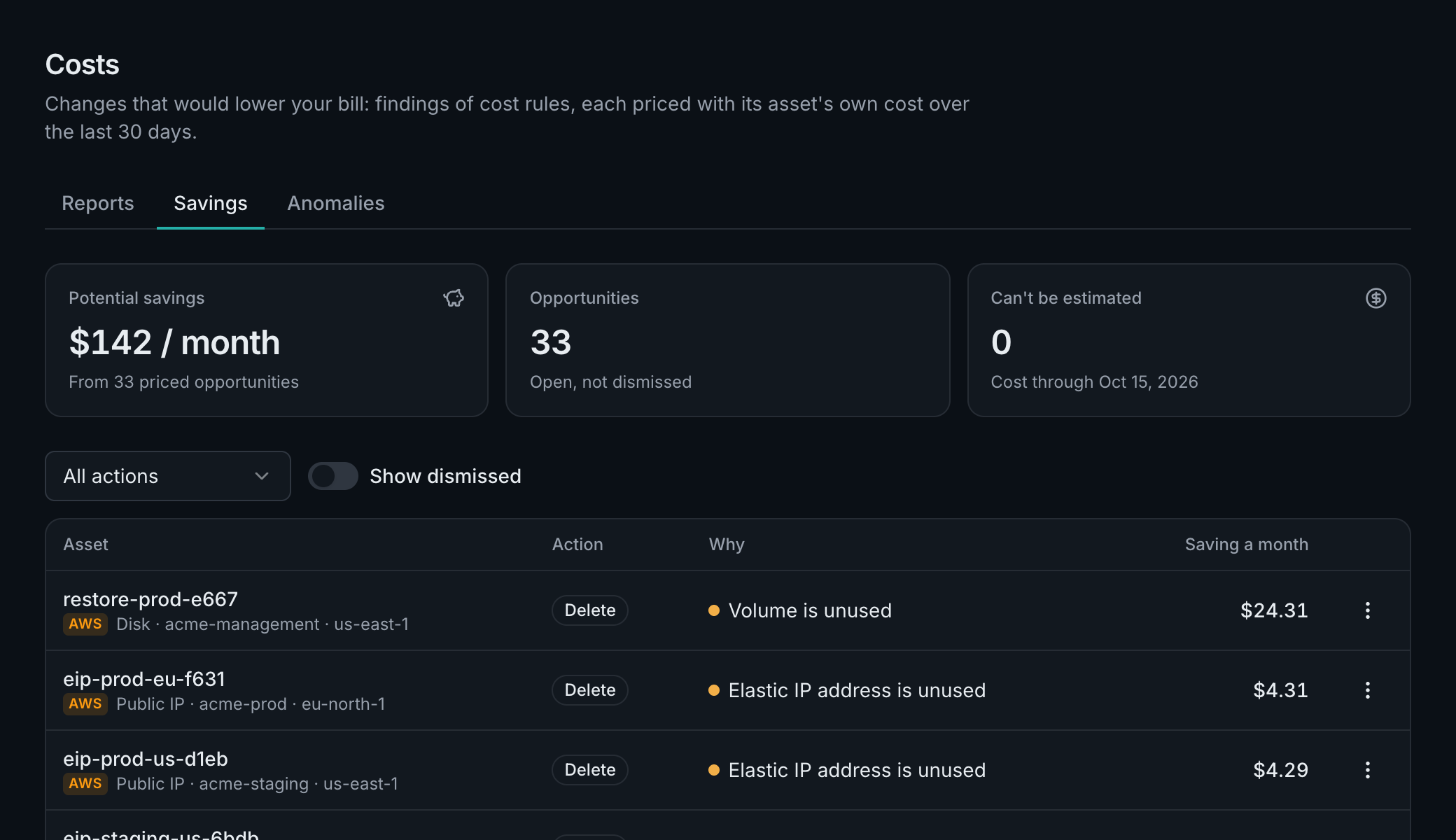
A workspace admin can dismiss an opportunity as not applicable, planned (for 90 days) or accepted, and restore it later.
Anomalies
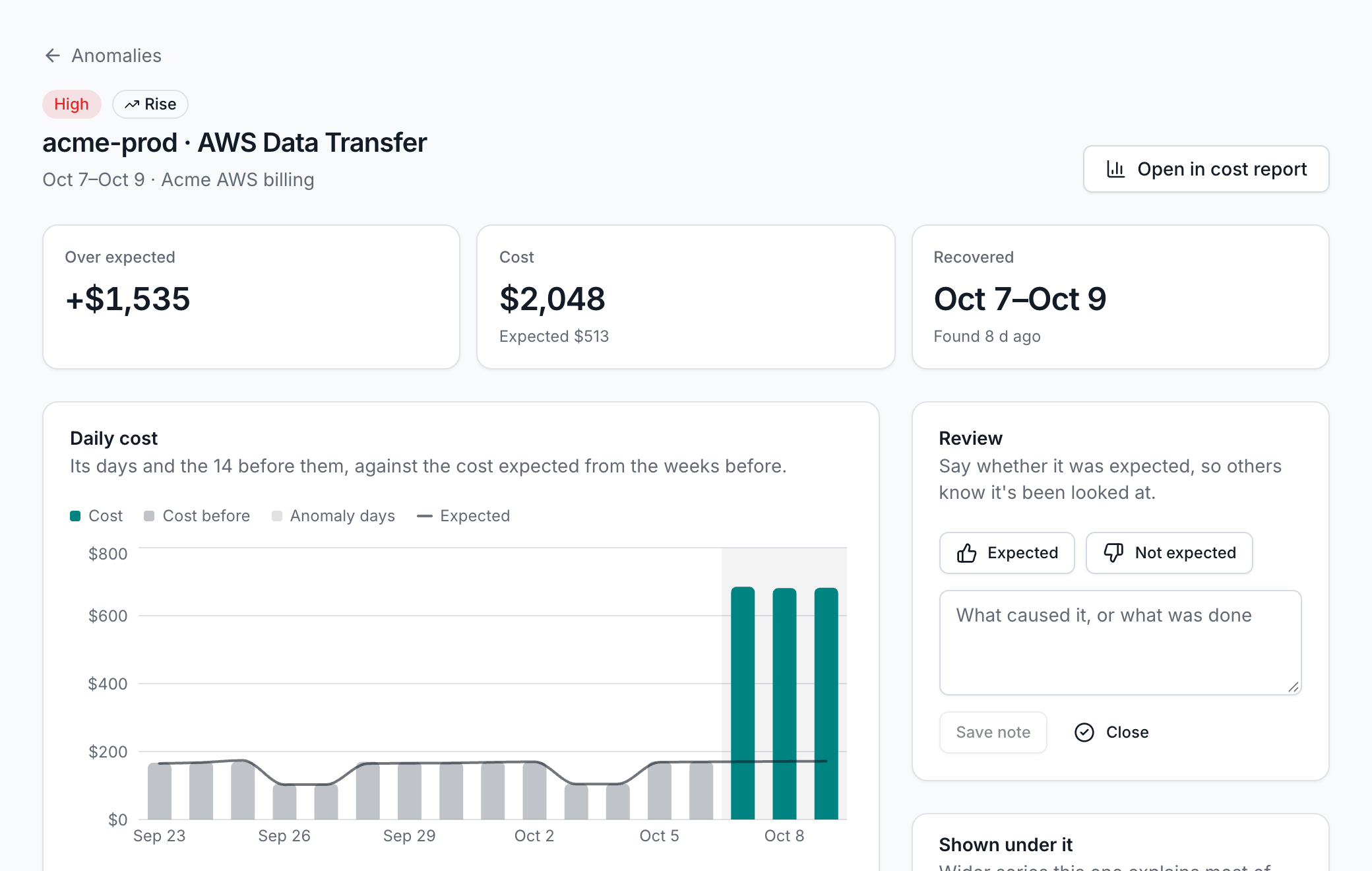
After every cost sync, AssetHermit looks for days on which spend was well above (a rise) or well below (a fall) what was expected, for each account, each service, and each service in each account. The expected cost follows each series' own weekly pattern, and a series is judged once it has four weeks of cost.
- By default, a rise must be at least $25 and 20% over the expected cost, and a fall the same amount and 50% under it. A workspace admin can change these in the workspace's settings.
- New spend, where a series had next to none before, and spend that stopped are flagged too.
- A fall that moved onto a new reservation or savings plan is marked as explained by the commitment, and left out unless you ask.
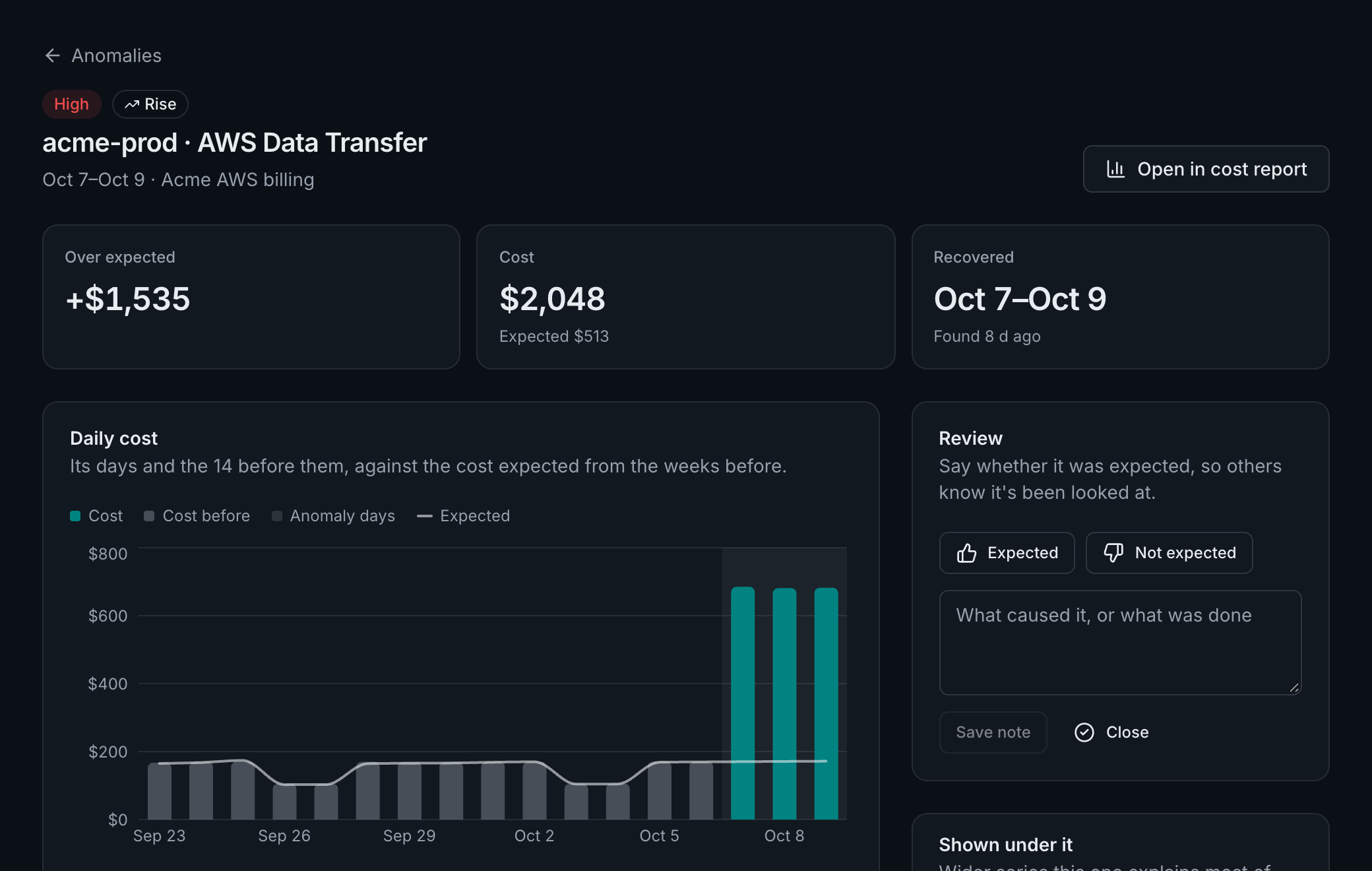
Each anomaly shows its impact, a chart of its days against the expected cost, where the money went (resources, regions, services and commitments), and what changed in your inventory around it. Anyone in the workspace can mark it expected or not expected and add a note; an admin closes it.