For managed service providers
Every client's cloud, kept apart, in one place
A workspace for each client, with its own connections, data, people and alerts. Your team sees every client from one sign-in, and each client sees only its own.
What gets in the way
A console per client
Each client is its own set of accounts, consoles and tools, and your team switches between them all day.
Keys you'd rather not hold
Access keys for every client in a vault are a liability you carry for them, and one more thing to rotate.
Proving what you're worth
Clients ask what you did for them this month, and the answer is scattered across tickets and spreadsheets.
Built for running many clouds
A workspace per client
Each client's asset and cost sources, findings, history, members and Slack channel kept apart. On the Enterprise plan, in the client's own region.
Access the client owns
Each client deploys a role or identity that trusts only its own workspace. Nothing to rotate, and deleting it ends your access.
Clients see only their own
Invite a client's people to their workspace alone, with the role you choose, alongside your own team.
Reseller-ready costs
Connect each client's billing group export at its own prices, leave your partner discounts out, or import only that client's accounts.
Value you can show
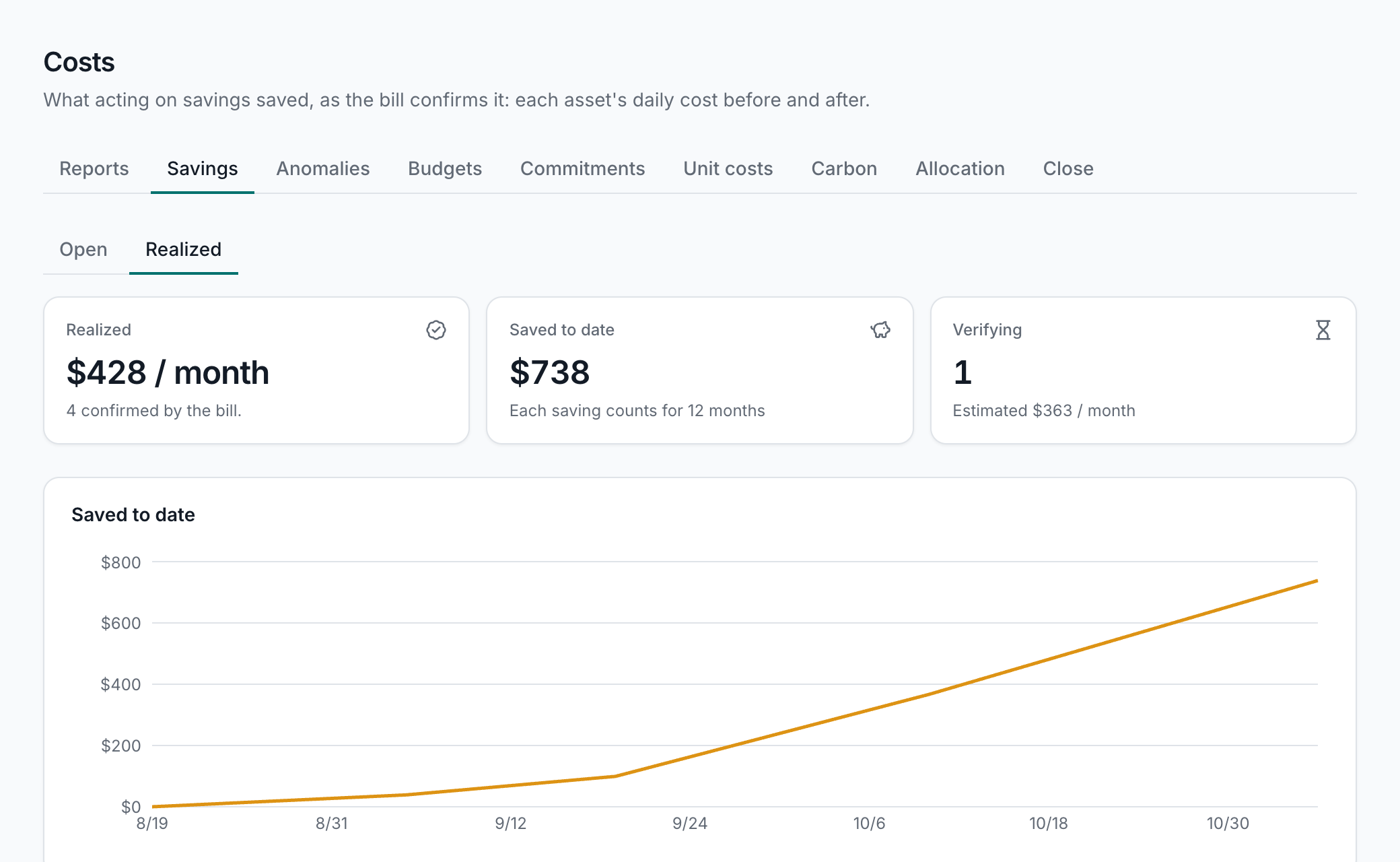
Savings the bill confirms, anomalies caught and findings resolved, in a summary each month and a digest each week.
Budgets per clientBeta
Budgets with forecasts for each client, and a cost overview that adds up every workspace for your own team.
How a new client starts
Onboarding is a workspace and a stack, not a project.
- 1
Create their workspace
Name it for the client, and choose how long its history is kept.
- 2
Send them the stack
The connect page writes a CloudFormation stack, gcloud commands or an ARM template for the client to deploy.
- 3
Invite their people
Add the client's own team to their workspace, if they want to see it.
- 4
Route their alerts
Send the client's alerts and weekly digest to your channel, or theirs.
Team runs up to 5 client workspaces and Enterprise up to 20. Running more? Talk to us. sales@assethermit.com
Read more about
- Inventory and searchEvery asset of every cloud in one inventory, searchable in one query language.
- Costs and savingsWhat every account, team and asset costs, what changed, and savings the bill proves.
- Security findings175 audit rules after every sync, each with the fix, tuned to what matters to you.
- Working togetherThe right people told, a shared wiki for what you know, and a setup guide for what's next.
Also for:Companies running their own cloudEnterprisesSecurity teamsFinance and FinOps
Take stock of your cloud
Start a 14-day free trial, no card needed. Connect a first cloud and see everything you run in one place.